
Needs Assessment
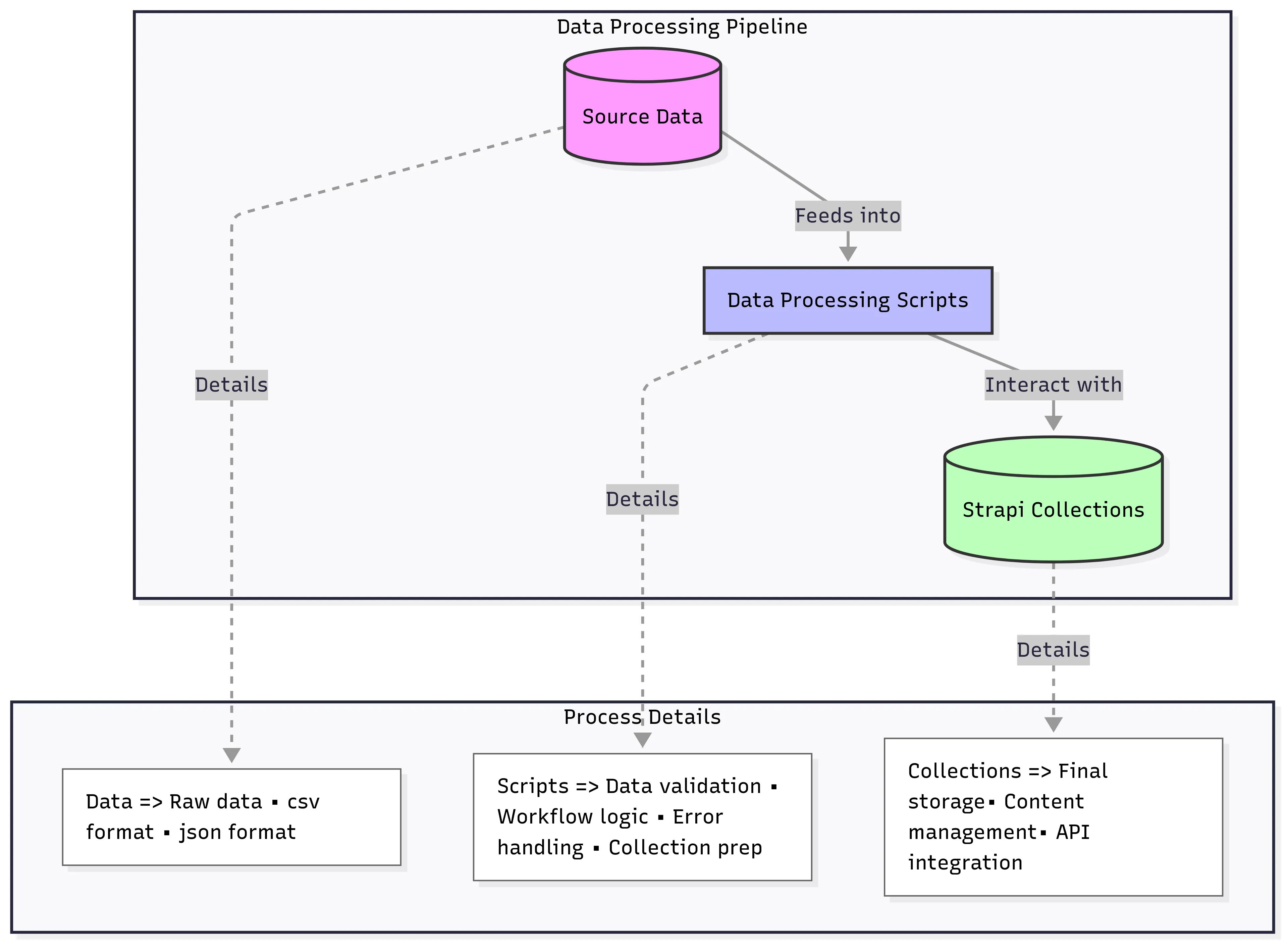
The current needs assessment information utilized for this documentation was obtained from the historic needs data. It is filtered through scripts that process the data to ensure specific requirements are met prior to uploading the information to the Strapi collections. The data can then be accessed through Strapi API endpoints for frontend integration.
Troubleshooting
Section titled “Troubleshooting”If you experience errors while setting up your local environment or running Strapi, start here for solutions to common issues.
Before you start, ensure you have the required packages and dependencies installed (Node.js, Node Version Manager, Yarn) in the versions specified in the repository README.
If you require further assistance, reach out to the team on the #tech channel on Slack.
Strapi admin build fails because environment keys are missing
Section titled “Strapi admin build fails because environment keys are missing”Error Message:
Missing admin.auth.secret configuration. The SessionManager requires a JWT secret
Applies To:
- Any OS
- Especially when using Windows PowerShell or Command Prompt, where
./setup.bashmay not run correctly
Cause:
Strapi requires several environment keys (for example APP_KEYS, ADMIN_JWT_SECRET, and others) to be defined in a .env file. The helper script ./setup.bash, which auto-generates these keys, may fail to run depending on your shell or OS. When the keys are not properly set, Strapi cannot start the admin panel and reports a missing JWT secret.
Solution:
-
Open a Git Bash terminal in your code editor.
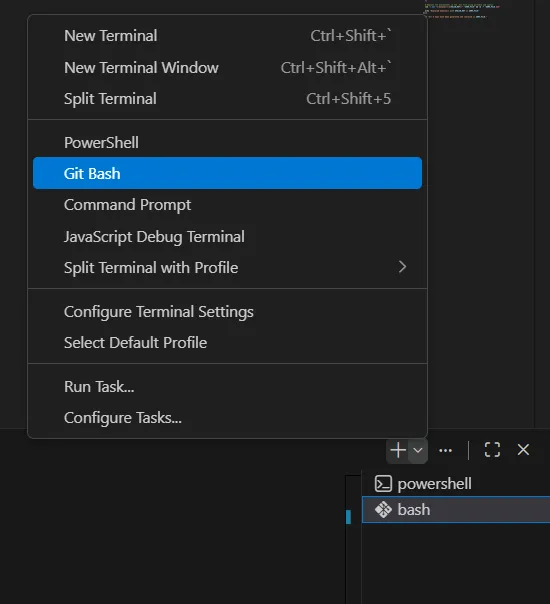
Use Git Bash rather than Powershell or Command Prompt so that
./setup.bashcan run correctly.In VS Code: Terminal -> New Terminal -> select “Git Bash”
-
Try running the setup script.
Terminal window ./setup.bash- If this completes successfully, it should create/populate a
.envfile. - If it fails, continue with the manual steps below.
- If this completes successfully, it should create/populate a
-
Create a
.envfile in the project root. -
Open
.env.example, copy all contents, and paste them into the new.envfile. -
Generate and insert the required keys.
Terminal window openssl rand -base64 16- Run this command, repeatedly, until you have generated each of the required keys. (There are currently 8 keys required).
- For each placeholder in
.env(for example"key1=="), replace it with one of the generated values. - Keep the same structure (quotes, commas) as shown in
.env.example.
- For each placeholder in
- Run this command, repeatedly, until you have generated each of the required keys. (There are currently 8 keys required).
-
Start the Strapi server. From either a Powershell or Git Bash terminal, run:
Terminal window yarn develop
Verification:
- The Strapi server starts without “missing … secret” or other key-related errors.
- The admin panel loads in a browser and you can log in or register a new admin user.
- Server logs show the application is running successfully.
Local environment setup (Windows OS)
Section titled “Local environment setup (Windows OS)”Error Message:
@swc/core "Failed to load native binding"
Applies To:
- Windows OS
- Local development using Yarn and Strapi
Cause:
@swc/core uses native binaries that must match your OS and CPU architecture. On Windows, this error often occurs when:
- Yarn is not configured to use classic
node_modules, - Platform/architecture are not locked, or
- The correct Windows SWC binary is not installed.
Solution:
-
Configure Yarn to use classic
node_modulesand lock to the current platform.In the project root, edit .yarnrc.yml and ensure it contains:
nodeLinker: node-modulesyarnPath: .yarn/releases/yarn-4.12.0.cjsenableScripts: truesupportedArchitectures:os:- currentcpu:- currentlibc:- current -
Enable Corepack and set the Yarn version.
Open a new terminal (Powershell or Git Bash) in the project root and run:
Terminal window corepack enableyarn set version 4.12.0Note: This version may update with the project.
-
Confirm the Yarn version is correct:
Terminal window yarn -vShould show 4.12.0 (or the updated version used in the project).
-
Clean and reinstall core dependencies:
Terminal window yarn dlx rimraf node_modules .yarn/cache .pnp.cjs .pnp.loader.mjsyarn cache clean# core deps (if not already present in package.json)yarn add @strapi/strapi@^5 better-sqlite3 react@18 react-dom@18 -
Install the correct Windows SWC binary.
Determine your CPU architecture in Powershell:
Terminal window echo $env:PROCESSOR_ARCHITECTUREThen install the matching SWC packages:
Terminal window # for AMD64yarn add -D @swc/core@^1.7.26 @swc/core-win32-x64-msvc@^1.7.26# for ARM (if applicable)yarn add -D @swc/core-win32-arm64-msvcFinally, reinstall dependencies:
Terminal window yarn install
Verification:
- Running the dev server no longer shows the
@swc/core "Failed to load native binding"error. - Strapi starts successfully and your local environment behaves as expected.